▲ 15 r/Windhawk
Drag to Delete 1.0.0
Drag to Delete 1.0.0
Drag to Delete
Drag files onto a floating target to move them to the Recycle Bin.

u/wh-updates — 4 days ago
Drag to Delete 1.0.0
Drag files onto a floating target to move them to the Recycle Bin.
Windows 11 Control Center Buttons 1.0.0
• Report a bug or suggest a feature · Discussion on Discord · Support
Removes the stock Settings (gear) button from the bottom bar of the Windows 11 Control Center panel and puts your own buttons there instead.
Actions are run by a dedicated Windhawk tool-mod process (windhawk.exe -tool-mod), the panel host sends the click to a tiny hidden window inside that process, which runs the command.
| Before | After |
|---|---|
| before | after |
| Field | Description |
|---|---|
| Preset | Ready-made button. Set Custom to define your own. |
| Name | Tooltip. Empty on presets = default name. |
| Icon | Segoe Fluent glyph (E713 or \uE713), image path (PNG/ICO/JPG/BMP/WEBP) or .exe/.dll path to take the icon from. |
| Action | Used for Custom. One or several commands, run in order. |
| Left-click submenu | Menu opened on left click (replaces Action). |
| Right-click submenu | Menu opened on right click. |
| Prefix | Example | Description |
|---|---|---|
" " |
"C:\Program Files\Windhawk\windhawk.exe" |
Opens a file or folder by absolute path. |
~ |
~Downloads or ~windhawk.exe |
Opens a folder or file by name. |
cmd: |
cmd:control |
Runs a command through cmd.exe. |
ps: or powershell: |
ps:shutdown /r /f /t 0 |
Runs through powershell.exe |
press: |
press:Win+E or press:0x5B;0x45 |
Keyboard key press using Win32 key code. |
web: |
web:https://windhawk.net/ |
Opens a URL in the default browser. |
ms-settings: |
ms-settings:bluetooth |
Opens a Windows Settings page. |
| Sign | Example | Description |
|---|---|---|
- |
-"C:\Program Files\app.exe" or -ps:shutdown /r /f /t 0 |
Runs as administrator. |
* |
*cmd:tasklist or *ps:Get-Process |
Execution with a terminal window. (only for cmd: and ps: prefixes). |
Signs can be combined: -*cmd:tasklist runs cmd in a visible window as admin.
Shake the mouse (or swipe back and forth on the touchpad) and the cursor grows so you can spot it instantly. Stop shaking and it shrinks back.
The catalog already has macOS magnifying cursor, which does something similar but works differently: it hides the system cursors and draws a scaled copy in its own overlay window, polling the cursor position every 16-40 ms. This mod instead replaces the real system cursors with bigger renders of your own cursor scheme, driven by raw input rather than polling. In practice that means no overlay lag or trailing, the enlarged cursor keeps your actual cursor style and colour, and there's no CPU cost while the mouse is idle. Don't enable both at once - they'll fight over the system cursors.
Real Names in Pre-Vista Recycle Bin Prompts 1.3
> Tested only on Windows 11 24H2 (build 26100). It has not been tried on any other version of Windows and may not work there.
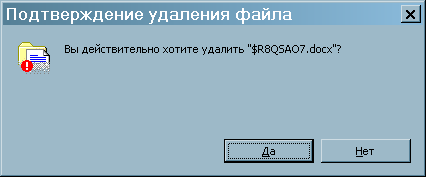
Delete something out of the Recycle Bin with the XP-style prompts of Pre-Vista File Operation Dialogs enabled, and the confirmation asks about a file you never had:
> Are you sure you want to delete "$RVAZ2WZ.b"?
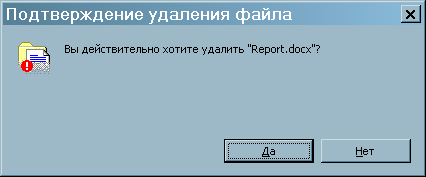
This mod puts the real name back:
Before: the prompt names the $R stub
After: the prompt names the file that was deleted
The stock Windows 11 prompt already shows the right name; the mod is for prompts that look the name up the way Pre-Vista File Operation Dialogs does.
The Recycle Bin does not keep a deleted file under its own name. It renames it
to $R plus a few random characters, keeping only the extension, and writes the
real path into a companion $I file next to it. Everything that asks the
Recycle Bin folder for a display name gets the original name back; anything that
only looks at the file on disk sees the stub.
The XP-style prompt looks at the file on disk: it asks SHGetFileInfo for the
display name of C:\$Recycle.Bin\<SID>\$RVAZ2WZ.b, and for a plain file path
that is just the file name - the stub.
When SHGetFileInfo is asked for the display name of a $R file inside a
$Recycle.Bin folder, the mod answers with the name recorded in the $I file
next to it - one small file read, no searching. With Show the full original
path on, it answers with the whole path the file was deleted from.
Anything else is passed straight through, and a $R file with no $I file next
to it keeps its own name.
Nothing about the Recycle Bin's contents, its folder view, or the files themselves changes. This only changes the name a prompt is about to display.
Если включён мод Pre-Vista File Operation Dialogs с запросами в стиле XP, то при удалении чего-нибудь из Корзины подтверждение спрашивает об удалении файла, которого у вас никогда не было, - например, «$RVAZ2WZ.b». Мод возвращает в такой запрос настоящее имя (скриншоты - выше, в английской части). Стандартный запрос Windows 11 и так показывает правильное имя; мод нужен для запросов, которые узнают имя так же, как Pre-Vista File Operation Dialogs.
Корзина не хранит удалённый файл под его настоящим именем. Она переименовывает
его в $R и несколько случайных символов, сохраняя только расширение, а
настоящий путь записывает в парный файл $I рядом. Всё, что спрашивает имя у
папки Корзины, получает настоящее имя; всё, что смотрит на сам файл на диске,
видит служебное.
Запрос в стиле XP смотрит на файл на диске: он спрашивает у SHGetFileInfo
отображаемое имя пути C:\$Recycle.Bin\<SID>\$RVAZ2WZ.b, а для обычного пути к
файлу это просто имя файла, то есть служебное.
Когда у SHGetFileInfo спрашивают отображаемое имя $R-файла в папке
$Recycle.Bin, мод отвечает именем, записанным в соседнем файле $I, - это
одно чтение маленького файла, без всякого поиска. Если включено «Показывать
полный исходный путь», ответом будет весь путь, откуда файл был удалён.
Всё остальное проходит без изменений, а $R-файл без соседнего $I остаётся
со своим именем.
Мод ничего не меняет в содержимом Корзины, в её окне и в самих файлах - только имя, которое запрос собирается показать.
> Проверено только на Windows 11 24H2 (сборка 26100). На других версиях Windows мод не проверялся и может не работать.
Enlarged Icons Without Thumbnail Frames 2.9.2
> Tested only on Windows 11 24H2 (build 26100). It has not been tried on any other version of Windows and may not work there.
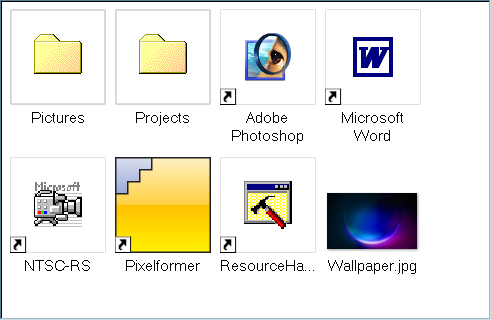
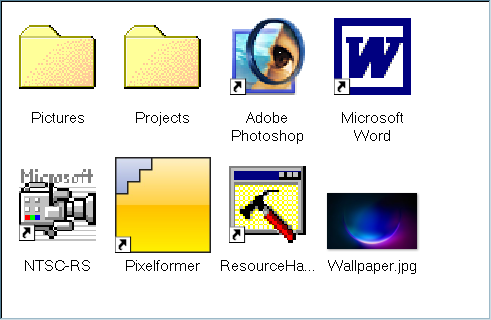
In the large icon views of Explorer, an item that has only a small icon - a classic 32x32 icon, say - is shown as a "thumbnail": the small icon sits in the middle of a white frame and is never enlarged to the size of the view. This mod takes such icons out of the frame and enlarges them to fill the view, with nearest-neighbour scaling, so classic icons stay sharp instead of blurred. The small arrow of a shortcut is kept in the corner of the enlarged icon.
Before (the mod disabled):
After:
It is not another way to turn thumbnails off. Mods like Disable Folder Thumbnails choose whether a folder gets a thumbnail; this one changes how an icon that Windows puts in a thumbnail frame is drawn, so that it can be as large as the view instead of staying small inside the frame.
Requirement: the classic list view. The frame removal and the enlargement
work on the classic SysListView32 file list, which Explorer only uses when a
mod or tweak turns it on - for example
Enable SyslistView32, or the
Use native list view option of Aerexplorer. With the default Windows 11 file
list, only the Folders and Shortcuts settings below have an effect.
A folder whose thumbnail is a preview of the files inside it, and a shortcut
whose thumbnail is taken from its target, cannot be enlarged as icons, because
they are not icons. The Folders and Shortcuts settings (both on by default)
make file system folders and all .lnk shortcuts use their icons instead, so
that they are drawn - and enlarged - the same way as everything else. Files keep
their thumbnails.
В крупных видах Проводника объект, у которого есть только маленький значок, - например, классический значок 32x32 - показывается как «эскиз»: маленький значок стоит посередине белой рамки и никогда не увеличивается до размера вида. Мод вынимает такие значки из рамки и увеличивает их на весь размер вида без сглаживания, так что классические значки остаются чёткими, а не размытыми. Стрелка ярлыка остаётся в углу увеличенного значка.
Это не очередной способ отключить эскизы. Моды вроде Disable Folder Thumbnails решают, будет ли у папки эскиз; этот мод меняет то, как рисуется значок, который Windows помещает в рамку эскиза, - чтобы он был размером с вид, а не оставался маленьким внутри рамки.
Требование: классический список файлов. Снятие рамки и увеличение работают в
классическом списке SysListView32, который Проводник использует, только если
его включает мод или настройка - например, мод Enable SyslistView32 или параметр
Use native list view в Aerexplorer. Со стандартным списком файлов Windows 11
действуют только настройки «Папки» и «Ярлыки».
Папка, эскиз которой - превью лежащих в ней файлов, и ярлык, эскиз которого
берётся у его цели, не могут быть увеличены как значки, потому что это не
значки. Настройки «Папки» и «Ярлыки» (обе включены по умолчанию) заставляют
папки файловой системы и все ярлыки .lnk показывать значки, чтобы они
рисовались и увеличивались так же, как всё остальное. У файлов эскизы остаются.
Перерисовывается только список файлов в окнах папок Проводника и только в видах со значками от 32 пикселей; рабочий стол, дерево папок и другие программы не затрагиваются. Настройки «Папки» и «Ярлыки» действуют везде, где сам Проводник выбирает между значком и эскизом, поэтому и на рабочем столе; диалоги открытия файлов других программ не затрагиваются. Изменение настроек «Папки» и «Ярлыки» или отключение мода видно, когда изображения загружаются заново, - откройте папку снова или обновите её. Мод Disable Thumbnail Minimum Size перехватывает то же решение об эскизах; если включены оба, настройки «Папки» и «Ярлыки» могут не действовать.
> Проверено только на Windows 11 24H2 (сборка 26100). На других версиях Windows мод не проверялся и может не работать.
When you minimize a window, a copy of it "falls" onto the desktop: it drops away, tilts back, loses its shadow and dims, until it lands as a small card underneath all other windows. Showcase Watch the full-quality video
Cards use DWM thumbnails, the same ones used by taskbar previews. The content stays live as long as the app keeps drawing while minimized; many apps stop doing so and show their last frame.
The mod runs in a dedicated Windhawk tool process. Cards remain available across Explorer restarts.
Quick translator & Layout-switcher 1.0.1
A lightweight Windows utility that bridges communication between English and Russian speakers. Eliminates mistyped keyboard layout errors and allows instant two-way translation without breaking workflow.
> Privacy Notice: This mod optionally connects to Google Translate (translate.googleapis.com) over HTTPS to perform translations. Selected text is transmitted only when a translation hotkey is triggered. This feature is strictly opt-in and disabled by default.
Ctrl + Alt + L): Fixes mistyped text (ghbdtn -> привет or vice versa) with full punctuation mapping and automatically updates the active system input layout.Ctrl + Alt + T): Replaces selected text directly inside any editable input field using HTTPS POST requests. Supports multi-line paragraphs.Ctrl + Alt + Q): Translates read-only incoming messages in a sleek DPI-aware dark tooltip positioned near your cursor.Ctrl + Alt + L - Switch mistyped layout (US <-> RU)Ctrl + Alt + T - In-place translation (Requires enabling online translation in Settings)Ctrl + Alt + Q - Floating HUD Tooltip translation (Requires enabling online translation in Settings)WinDuo 0.1.0
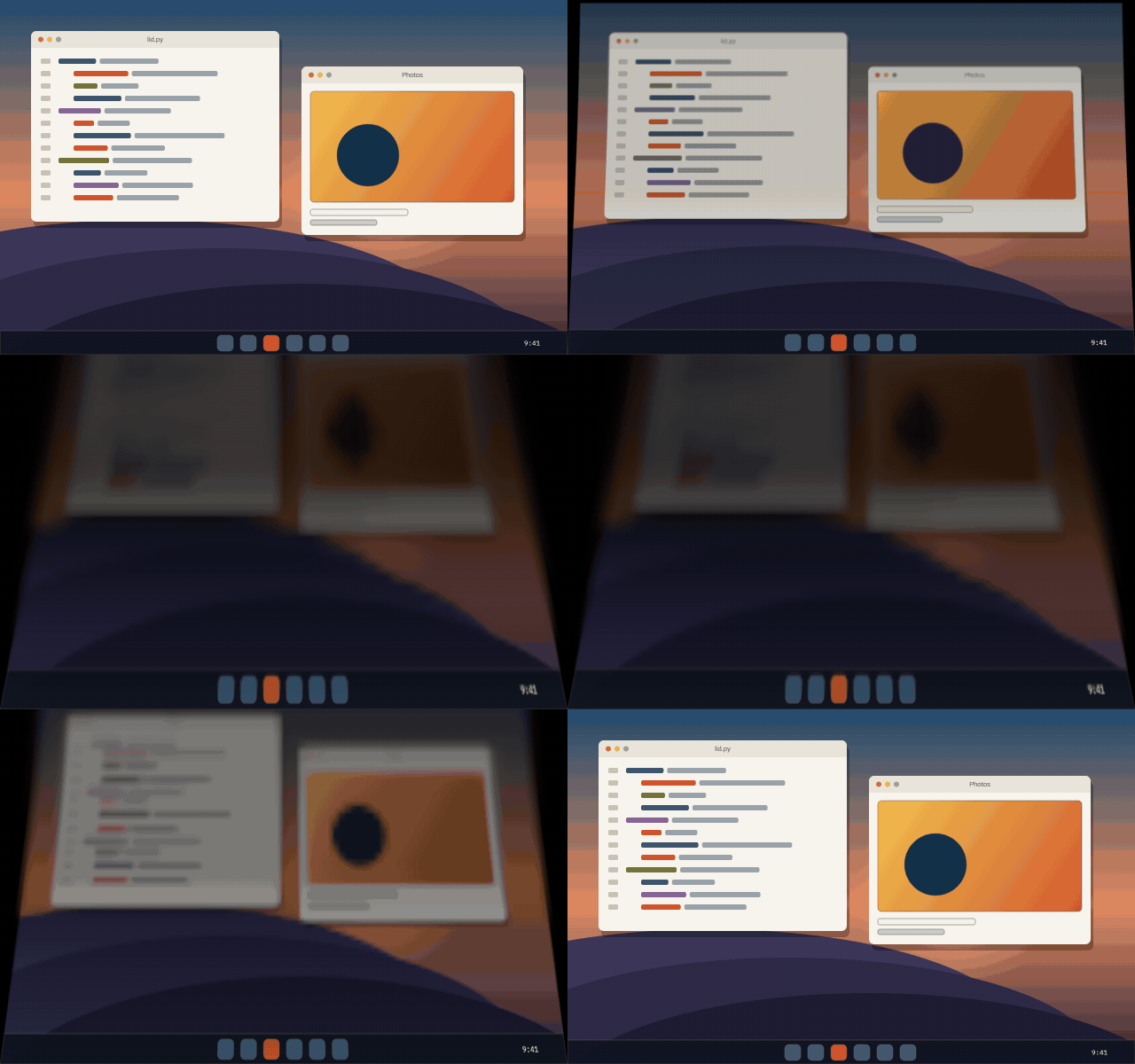
As the laptop lid closes, the picture on screen leans back, blurs and dims, as though it were a sheet hinged at the bottom of the display that stays put in the room while the glass turns away from it. The top of the sheet tips forward a little, so content near the top edge stays legible for longer.
There is no hinge sensor on most laptops, so the lid angle comes from the webcam: closing the lid pitches the camera down, the scene slides up the frame, and the size of that slide is the angle.
This is the Windhawk edition of WinDuo. Its geometry, shader and state machine are ported from Mac Duo (Apache 2.0, Copyright 2026 Makito). It runs as its own process (a Windhawk tool mod), injects into nothing, and hooks nothing.
The screen leaning back as the lid closes
windhawk.exe), so Windows shows no prompt. It needs
Settings > Privacy & security > Camera > Let desktop apps access your
camera turned on, and windhawk.exe then appears in that list while the
mod runs. If the setting is off, the mod log says so.The default assumes a typical laptop webcam (about a 75 degree field of view). If the effect starts too early or too late, adjust Degrees per pixel: raise it if a small close already triggers the effect, lower it if a large one does not. The desktop app has a calibration wizard that measures this exactly.
Turn on Play a preview and save. The effect plays one scripted close on whatever is on screen, then the switch can be turned back off.
Live Video Wallpaper 1.1.1
Author: AKS HAY | GitHub: sysakshay | License: GPL-3.0
Play local MP4 videos directly on your Windows desktop as a live wallpaper using Media Foundation and Direct3D 11, featuring a built-in real-time hardware profiler.
Unlike traditional animated wallpaper implementations, this mod renders video directly through the GPU, minimizing CPU usage while maintaining rock-solid 60 FPS playback.
Ctrl + Alt + D): Live HUD overlay displaying true wall-clock FPS, frame-time percentiles (P95/P99), VRAM/commit stats, and pipeline stage timings (Decode, Transfer, Present).P95 CPU occlusion check < 0.1ms). Uses zero-latency EVENT_SYSTEM_FOREGROUND event hooks.0% to 100%) with automatic unmuting and volume restoration when resuming playback or switching apps.Pause, Drop to 15 FPS, or Play normally) when running on laptop battery power.Fill (stretch to fill screen), Cover (zoom & crop edges without distortion), and Fit (letterbox with cinema-style black borders). Fixed aspect ratio scaling for wide, ultrawide, and 1:1 square monitors.Ctrl + Alt + G): Asynchronous background thread file picker for .mp4, .m4v, .mov, .wmv, and .webm files with zero frame drops during selection.HTTRANSPARENT, WS_EX_TRANSPARENT, WS_DISABLED) ensures right-clicking desktop icons or background opens context menus with 0ms latency.Ctrl + Alt + G — Open the interactive file picker to load a new video (.mp4, .m4v, .mov, .wmv, .webm).Ctrl + Alt + H — Hide and pause the wallpaper and its audio, or show and resume them.Ctrl + Alt + D — Toggle Performance Profiler HUD (On / Off), if enabled in settings.When toggled via Ctrl + Alt + D, the on-screen profiler groups diagnostics into color-coded (🟢 Good, 🟡 Warning, 🔴 Critical) sections:
FPS vs polling Ticks, rolling average Frame Time, P95/P99 frame times, and overall CPU/GPU time.VRAM usage, Shared RAM, working set, commit charge, and active D3D/MF object counts (Textures, SwapChains, MediaEngines, Surfaces).Decode, TransferVideoFrame, CopyResource, Present, and Occlusion checks.GPU Idle, Bound by Decode, Present blocked by DWM, etc.) and system state (Battery, Paused, Recoveries).Full path to any local video file on your disk. Can also be updated dynamically via Ctrl + Alt + G.
Max frames per second (60, 30, 15) or monitor to sync exactly with monitor refresh rate (VREFRESH).
true / false).100%, 90%, ..., Muted).Frequency of background occlusion safety-net polling (fast: 100ms, normal: 250ms, relaxed: 500ms).
B8G8R8A8_UNORM render target before copying to the flip-model swap chain (DXGI_SWAP_EFFECT_FLIP_DISCARD) to guarantee tear-free presentation without MF timing conflicts.Fit mode.HFONT), desktop region guards (HRGN), and WorkerW window handles are cached across frames to eliminate handle churn.A lightweight free/available disk space label integrated directly into the Windows 11 taskbar. This is kind of a "remix" of the Taskbar Countdown Timer module by Richi (https://github.com/richilp) The label is shown on the primary taskbar only, taskbars on secondary monitors don't show it. Windows 11 only.
When the label gets clipped, please lower the font size, or clear the description
Hide Taskbar Only on Desktop 8.0.0
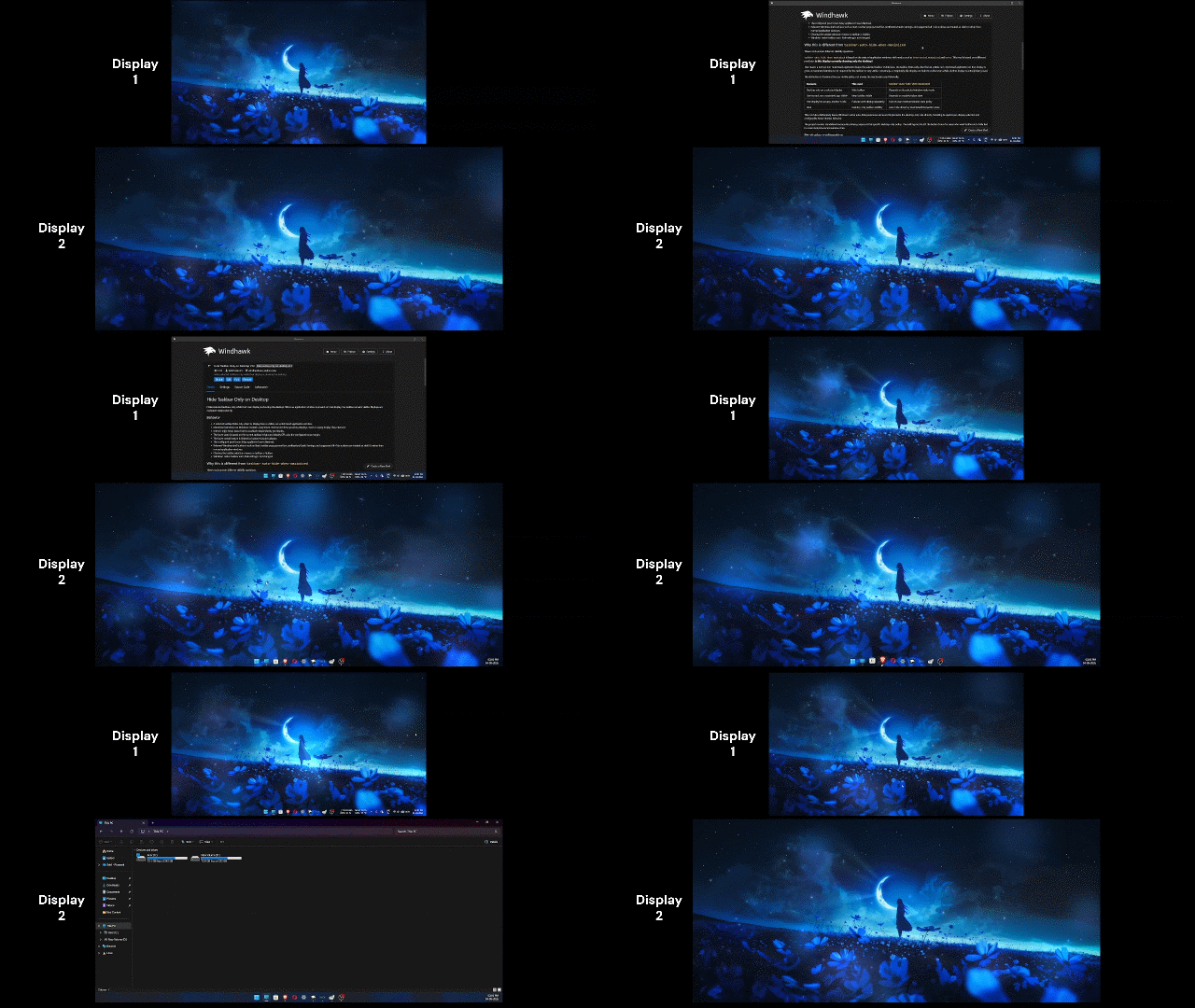
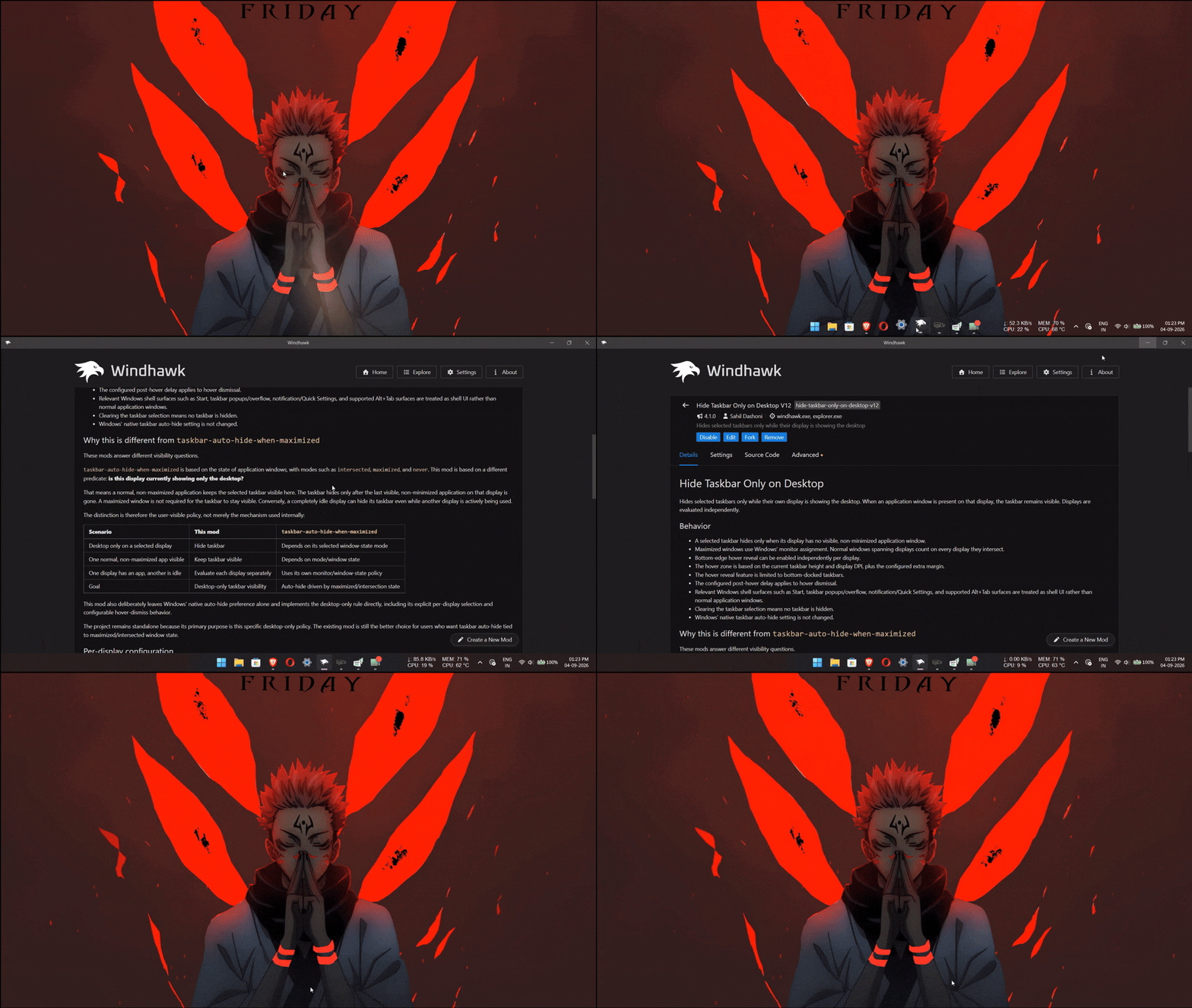
Hides selected bottom-docked taskbars when their display has no relevant application. Detected borderless fullscreen windows are also treated as desktop-only display state, with explicit shell, keyboard, and hover reveals handled separately. Each display is evaluated independently.
Extra hover margin (px) adds to the taskbar-height-based bottom-edge reveal zone and is scaled for the display DPI.
Auto-hide delay after hover (ms) controls how long the revealed taskbar stays visible after the cursor leaves the bottom-edge hover zone. It only affects hover dismissal; desktop-only hides remain immediate.
Reveal taskbar on bottom-edge hover selects the displays where bottom-edge hover can reveal the taskbar.
Taskbars to hide on desktop selects the displays whose taskbars participate in desktop-only hiding.
Stable monitor interface names lets you pin a display slot to a specific physical monitor by selecting the slot and pasting its Windows monitor interface name returned by EnumDisplayDevicesW with EDD_GET_DEVICE_INTERFACE_NAME. Each mapping has its own display selector and text field, so a mapping for Display 10 can be added directly without creating mappings for Displays 1 through 9. Pinned monitors always use their configured display slots. Any monitors that are not pinned fill the remaining display slots in their current logical order. If multiple mappings target the same slot or physical monitor, the last matching mapping wins.
To find the interface names on Windows, run this in PowerShell:
Add-Type @'
using System;
using System.Runtime.InteropServices;
public static class DisplayDevices2 {
    [StructLayout(LayoutKind.Sequential, CharSet = CharSet.Unicode)]
    public struct DISPLAY_DEVICE {
        public int cb;
        [MarshalAs(UnmanagedType.ByValTStr, SizeConst = 32)] public string DeviceName;
        [MarshalAs(UnmanagedType.ByValTStr, SizeConst = 128)] public string DeviceString;
        public int StateFlags;
        [MarshalAs(UnmanagedType.ByValTStr, SizeConst = 128)] public string DeviceID;
        [MarshalAs(UnmanagedType.ByValTStr, SizeConst = 128)] public string DeviceKey;
    }
    [DllImport("user32.dll", CharSet = CharSet.Unicode, EntryPoint = "EnumDisplayDevicesW")]
    public static extern bool EnumDisplayDevices(string lpDevice, uint iDevNum, ref DISPLAY_DEVICE lpDisplayDevice, uint dwFlags);
}
'@
for ($i = 1; $i -le 16; $i++) {
    $m = New-Object DisplayDevices2+DISPLAY_DEVICE
    $m.cb = [Runtime.InteropServices.Marshal]::SizeOf($m)
    if ([DisplayDevices2]::EnumDisplayDevices("\\.\DISPLAY$i", 0, [ref]$m, 1)) {
        Write-Host "Display $i : $($m.DeviceString)"
        Write-Host "Interface : $($m.DeviceID)"
        Write-Host ""
    }
}
Paste the full value shown after Interface : into the mapping for the display slot you want to attach to that physical monitor.
The mod intentionally supports up to 16 fixed logical display slots. Pinned monitors stay in their selected slots, while unpinned monitors fill the remaining slots in current logical order.
taskbar-fadetaskbar-fade and this mod both use layered taskbar transparency and can reveal the taskbar from the bottom edge, so they overlap in mechanism. This mod has a different primary state model: desktop-only state is evaluated independently for each display, and the taskbar becomes immediately eligible for hiding when that display has no relevant application, subject to explicit hover, shell, or keyboard reveals. It also carries the per-display fullscreen, shell-surface, keyboard, minimize, and recovery handling needed by that model.
The two mods should not be used on the same taskbar because both modify the taskbar window's transparency/style state.
The state logic runs in a dedicated Windhawk tool process. Taskbars are hidden with layered-window transparency plus click-through behavior instead of Windows' native taskbar auto-hide, so the normal desktop work area is intentionally unchanged.
Fullscreen ownership is tracked per display for borderless monitor-sized windows. Foreground, move/size, per-owner location, and recognized shell-surface events update state promptly, including geometry changes while the owner is in the background. Cached fullscreen ownership tolerates transient visibility or cloak changes while focus moves between displays and remains active while the owner still matches fullscreen geometry. Short validation timers and a 5-second safety refresh cover transitions that do not produce a single reliable event. Taskbar control focus is tracked through out-of-context accessibility focus events, so keyboard navigation such as Win+T and Win+B can reveal a taskbar even when Windows has not yet made that taskbar the foreground window. A short release debounce keeps the taskbar visible across transient focus transitions between taskbar buttons. Mouse-button activity and shell-menu focus are excluded so ordinary mouse interaction is not misclassified as keyboard navigation.
Left Taskbar Quick Pin Dock 2.5.4
This mod supports Windows 11 only, and only when the taskbar is centered (the default). Left-aligned or otherwise repositioned taskbars are not supported. On an unsupported layout it does not crash or cause any issue -- the dock simply detects there's no room, stays hidden, and does nothing. It just won't work there.
Live preview of the Left Taskbar Quick Pin Dock
A lightweight icon dock that sits just left of the Start button on the Windows 11 taskbar. Drag any app onto it to pin, click to launch or focus, and drag it off (or double-right-click) to unpin.
| Action | Result |
|---|---|
| Drag an app window onto the dock | Pin it |
| Left-click a pinned icon | Launch, or focus if it's already running |
| Drag a pinned icon left / right | Reorder it |
| Drag a pinned icon off the dock | Unpin it |
| Double-right-click an icon | Unpin it (off by default) |
| Hotkey (default Ctrl + Alt + P) | Pin or unpin the focused app |
| Triple-tap L | Lock / unlock the dock |
Two more gestures are available but off by default (enable them in Settings): the rapid-click unpin-all (three quick clicks on an icon clears the whole dock) and the bare-key taps (tap P / U three times to pin / unpin the focused app). They ship disabled because they can fire while you type in other apps; the Ctrl + Alt + P hotkey is the safe alternative. Every setting is documented in the Settings reference below.
Lock the dock: triple-tap the L key to lock it, triple-tap L again to unlock. While locked, the quick gesture unpins are refused (triple-tap U, the rapid-click unpin-all, double-right-click, and the hotkey's unpin) so a stray gesture can't drop a pin. A deliberate drag-off that breaks the rope still unpins, and pinning / reordering still work.
On the very first launch the dock needs a moment to detect the taskbar and settle, so it may not appear instantly. That's normal -- it's working in the background, so please wait rather than reinstalling. If it still hasn't shown up after a few minutes, restarting Explorer (or, most reliably, your PC) sorts it out. You can also raise the Startup delay setting.
hideDockBorder). — Turn off the thin grey Windows 11 outline drawn around the dock. Purely cosmetic; the dock, icons and rounded corners are unchanged.enableLockAnimation). — OFF: a brief highlight on the dock's real edge. ON: a loading-style glow sweeps left→right across the whole dock. Colours unchanged (gold when locking, green when unlocking).@include windhawk.exeGet*/class checks before any heavyweight call."Explorer workspace".MakeWorkspaceId now uses CoCreateGuidEvery option lives in the Windhawk Settings panel for this mod. Most apply live; the two noted below need a mod reload.
| Setting | What it does | Default |
|---|---|---|
| Max pinned apps | How many apps can be pinned (1 - 20). The dock auto-sizes: min 5 slots, grows to 10, then extra pins scroll. | 5 |
| Icon size | Icon size in px before DPI scaling (16 - 48). | 33 |
| Dock gap from Start | Gap between the dock and the Start button (0 - 40 px). | 6 |
| Show workspace divider | Show the gold divider between workspace pins and app pins (only when you have both). | on |
| Drag to reorder | Drag icons left/right to rearrange; off = drag only unpins. | on |
| Double-right-click to unpin | Unpin an icon with a double right-click (dust effect). | off |
| Rapid-click unpin-all (opt-in) | Three quick clicks on an icon unpins EVERYTHING. Off so it can't fire by accident. | off |
| Bare-key tap gestures (opt-in) | Triple-tap P / U / L to pin / unpin / lock, regardless of focus. Off (fires while typing). | off |
| Scroll-wheel navigation | Hover + wheel moves the highlight across pins. | on |
| Drag tether (rope) | Shows the stretchy thread while dragging an icon off. | on |
| Drag tether - thickness | Rope thickness, 1 (hair) to 10 (cord). | 2 |
| Drag tether - break length | How far you pull before the rope snaps (150 - 650 px). | 450 |
| Drag tether - hue | Rope colour hue (0 - 359). | 30 |
| Unpin trigger | Only when the rope BREAKS, or rope breaks OR released outside the dock. | ropeBreak |
| Corner roundness | 0 = square, 1 - 40 = slight, 41 - 100 = full pill. | 40 |
| Explorer workspace pins | Allow File Explorer to be dragged in as a workspace pin. | off |
| Startup delay | Extra wait before the dock loads (0 - 3000 ms). | 0 |
| Sync with taskbar auto-hide | Hide the dock when the taskbar auto-hides. | off |
| Pin hotkey - modifiers | Modifier keys for the pin/unpin hotkey (or Disabled). | Ctrl + Alt |
| Pin hotkey - key | Key pressed with the modifiers above. | P |
Created with ❤️ by Ashix. Thanks to the Taskbar Dock Animation
(taskbar-dock-animation) and Taskbar Dock Animation Plus
(taskbar-dock-animation-plus) mods for animation refinements.
Customize Favorites folder icons in Microsoft Edge's native browser interface without affecting web content.
edge://restart.Once the mod is active, the setting applies immediately without restarting Edge.
Disabling or uninstalling the mod restores Edge's original folder icons in the running browser. Re-enabling the mod in that same Edge instance may require a restart; use edge://restart if closing and reopening Edge doesn't do it.
When Use Windows folder icons is enabled:
msFavoritesMonolineFolder feature. The mod suppresses that path while the option is enabled. This keeps the implementation simpler and avoids hooking private Favorites menu/button classes.msedge.dll symbols. The mod waits up to 5 seconds for cached symbols. If resolution takes longer, Edge continues with its normal UI while symbol preparation finishes in the background. A temporary tray icon shows the current status and notifies you when the symbols are ready; restart Edge once after preparation completes. If closing and reopening Edge doesn't restart the browser process, use edge://restart.msedge.dll.pdb was 676.0 MB (644.7 MiB) and total preparation took 515.1 seconds (8 min 35 sec) on a 75 Mbit/s connection and an Intel Core i7-8700K. The PDB download itself took about 8 min 32 sec, while symbol resolution after the PDB was opened took under 2 seconds. In this test Microsoft's symbol server delivered the .pdb directly rather than the compressed .pd_ variant, and effective transfer speed was only about 10.6 Mbit/s, so the download dominated the total time. Times vary with symbol-server/CDN throughput, connection, CPU, and Edge build.uninitializing until that work completes. This is intentional: the symbol resolver can't be cancelled safely while code from the mod is still executing.--remote-debugging-pipe are intentionally skipped so automation sessions don't pay the native UI symbol-resolution cost.When a program shows an Open, Save As or Select Folder dialog, this mod adds the folders currently open in File Explorer (up to 3) to the bottom of the dialog's navigation pane, most recently used first. One click and you're there.
Optionally, the dialog can open directly in the most recently used File Explorer folder.
GetOpenFileName/GetSaveFileName with a hook procedure or
a dialog template get the older dialog, which has no navigation pane).If you don't want the mod in a specific program (for example, a browser that already remembers its download folder), exclude it in the mod's Advanced tab.
Explorer Visual Tweaks Dark 1.0.0
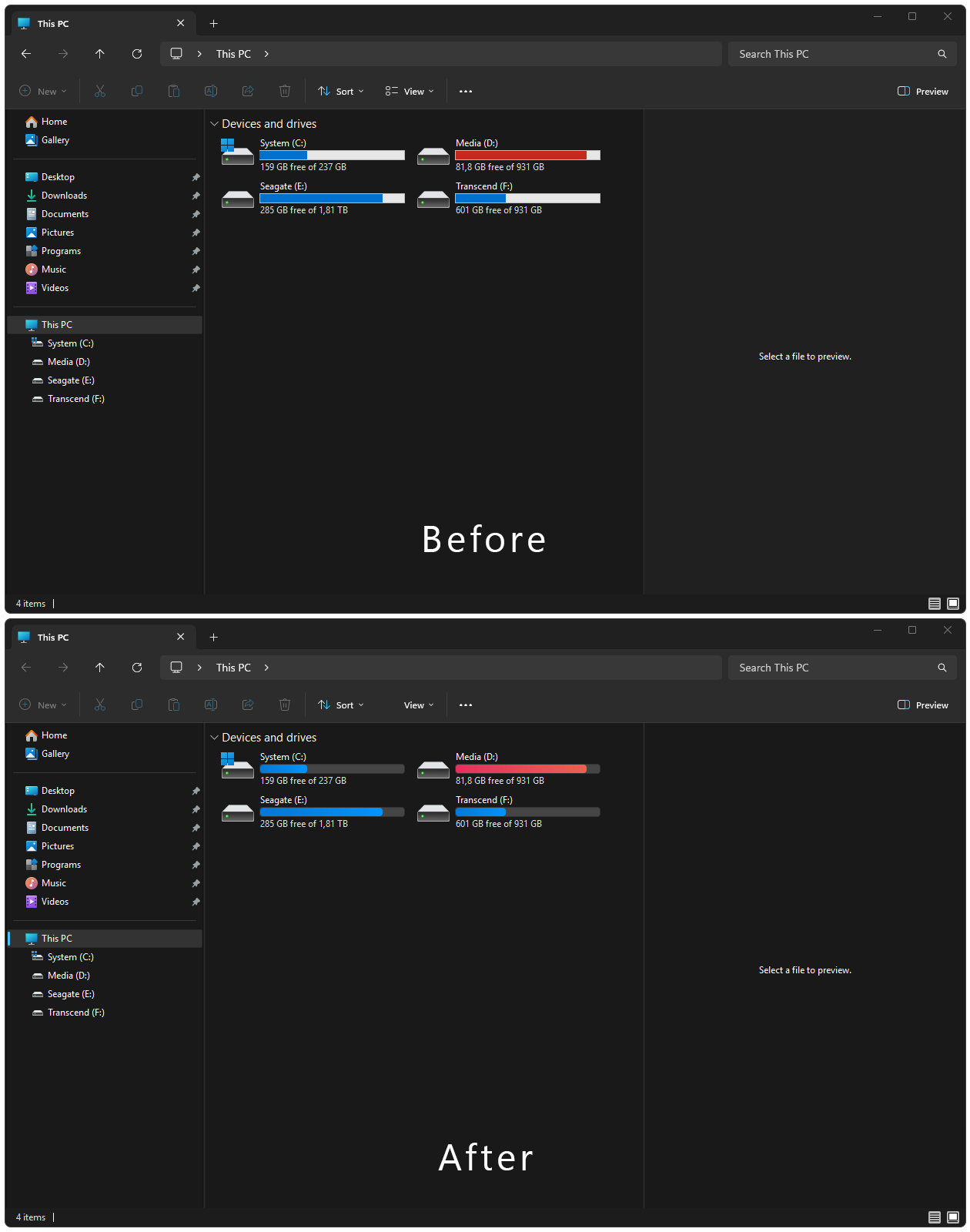
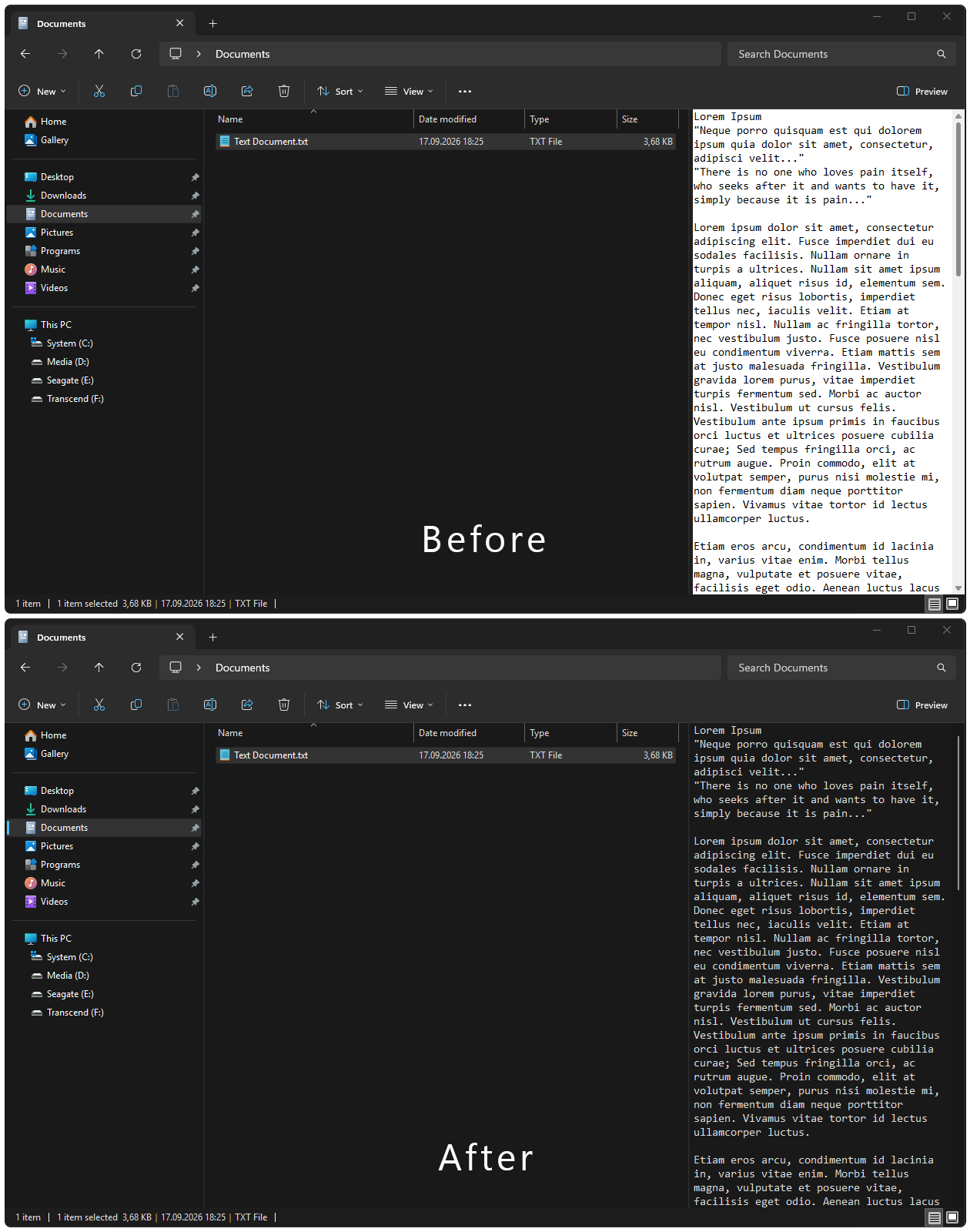
This mod fixes visual inconsistencies in Windows Explorer and related windows, primarily in the standard dark theme. It brings the Preview Pane, plain-text preview, drive progress indicators, item selection, and Navigation Pane focus states to a consistent appearance, and allows their colors and rounding to be customized. The selection and progress renderers aren't tied to a particular theme. Their default colors are tuned for the standard dark theme, but can be changed to suit another theme. The Preview Pane correction is intentionally inactive in the standard light app mode, where the original color mismatch doesn't exist. Selection styling applies to Explorer and Explorer-based Open/Save dialogs. Drive progress rendering replaces only the PROGRESS part/state pairs used by Explorer. Preview Pane fixes cover Explorer, Open/Save dialog hosts, and prevhost.exe. Selection and Progress settings apply immediately.
Explorer selections and drive progress Preview Pane and plain-text preview Important: Preview Pane tweaks require restarting File Explorer and any included host applications for changed values and colors to apply correctly. A restart is also required after disabling the mod to fully restore the default Preview Pane appearance. To style an Explorer-based Open/Save dialog, add its host application to Windhawk's Inclusion List.
Shows an individually configurable countdown before Windows shuts down,
restarts, enters sleep, or enters hibernation. A value of 0 disables the
countdown for the corresponding action and executes it immediately. Values
above 30 seconds are limited to 30 seconds.
The countdown is cancelled by:
Moving the mouse alone does not cancel the countdown. The cancelling input is consumed and isn't forwarded to the application underneath the overlay.
The countdown is displayed on the primary monitor. Keyboard and mouse-button input on other monitors still cancels it.
The mod targets power actions initiated through the Windows shell. It is loaded into:
explorer.exe for classic shell power pathsRuntimeBroker.exe because current Windows 11 builds can delegate Start-menu
power actions to a runtime brokerPower actions initiated by shutdown.exe, Task Manager, the Ctrl+Alt+Delete
screen, the sign-in/lock screen, or arbitrary third-party applications aren't
covered unless they ultimately call a hooked API from one of these processes.
Enable mod logging in Windhawk's Advanced tab. When an action is detected, the log states which Windows API was intercepted. The exact API used by Windows can differ between builds.
The new Microsoft Teams desktop app only allows one instance per Windows
session — launching it again just activates the existing window. Teams
enforces this with two named mutexes, Teams-Tfw-instance and
Teams-Tfw-server. This mod appends the process ID to those names so each
launch believes it is the first one, letting you run e.g. your own tenant and
a client tenant side by side in two full Teams windows.
Each instance gets its own tray icon, with the process ID in the tooltip
(e.g. Microsoft Teams [20680]) so they can be told apart. Additional icons
usually land in the tray overflow (the ^ arrow). Quit each instance from
its own tray icon or from inside its window — closing a window only
minimises it.
Restart Teams after enabling, disabling, or changing the settings of the mod. The mod decides once, when a Teams process starts, whether and how to rewrite names, and keeps that decision — and the settings in effect at the time — for the life of the process. A Teams instance that was already running when the mod was enabled is left untouched; an instance started with the mod active keeps its salt across mod updates and Windhawk restarts; and settings changes only apply to Teams processes started afterwards.
Hooks NtCreateMutant / NtOpenMutant in ntdll and appends _<pid> to
object names matching the configured patterns. Only mutexes are hooked —
sections and events are deliberately left alone, since those fire on the
DLL-loader path and hooking them destabilises the process.
Each ms-teams.exe process uses its own PID as the salt. Only the top-level
Teams process creates or opens the Teams-Tfw-* objects; child
ms-teams.exe processes never touch them, so they need no shared salt.
Teams registers its tray icon with a fixed GUID, and Windows allows only one
icon per GUID, so a second instance would get no icon at all. The mod hooks
Shell_NotifyIconW in salted processes, drops the GUID so the icon is
identified by its window instead, and appends the PID to the tooltip.
%LOCALAPPDATA%\Packages\MSTeams_8wekyb3d8bbwe\LocalCache, including the
WebView2 user-data folder). Two Teams processes writing it concurrently is
exactly what the single-instance lock exists to prevent. This can corrupt
the profile, which means signing in again and rebuilding the cache. Avoid
signing in/out or changing settings in more than one instance, and use at
your own risk.teams:// links are routed by Windows activation
and may land in a different instance than the one you expect.ms-teams.exe (the Teams Meeting Add-in in Outlook,
the updater) are not hooked and cannot reach a salted instance's objects;
meeting-join from Outlook may target the wrong instance or none.Turn on Log only, then quit and restart Teams. The Windhawk log lists every named mutex the new Teams process creates or opens without modifying any of them (the interesting objects are created during startup, so a running instance shows nothing useful). If a future Teams build renames the single-instance objects, add the new name to Object name patterns, turn Log only off, and restart Teams again.
Windows Vista/7 Logoff Screen Restorer 1.0.0
This mod shows a Windows Vista/7-style full-screen confirmation (dimmed desktop, a list of your open programs, and "Force log off"/"Cancel" buttons) right before a log off, shut down or restart started from Explorer, whenever programs are still open.
The files on the system are not modified. A program that refuses to close, for example because of unsaved work, is not force-closed, so Windows may still show its own "app is preventing shutdown" screen afterwards in rare cases.
The mod has been tested on Windows 10 21H2, Windows 11 24H2, and Windows 11 25H2.
To try the mod without logging off, you can enable a preview shortcut in the mod's settings (previewHotkey) and press it any time to preview the screen. The preview shortcut is off by default. Win+L can't be used as a shortcut — Windows reserves it for locking the PC.
Unlike win7-bsdr, which hooks LogonUI.exe and winlogon.exe, this mod runs entirely inside explorer.exe: no LogonUI.exe setup it is essentially a confirmation on every shell-initiated shutdown.
For any suggestions or problems it is recommended to contact the author of this modification.
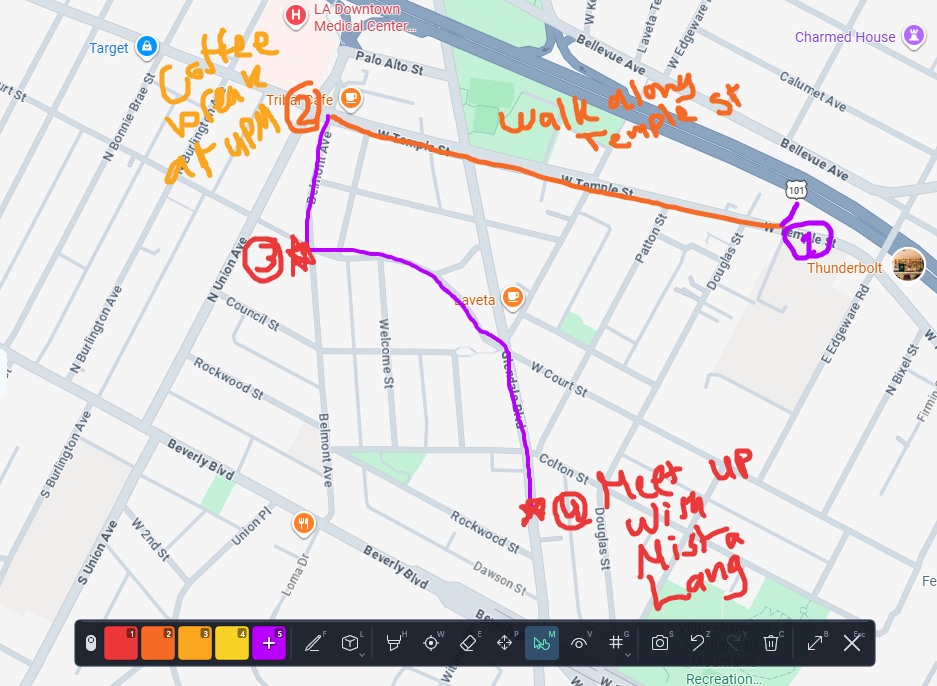
WinDraw - Screen Inking & Annotation 1.0.0
A complete, zero-bloat, hardware-accelerated screen annotation and drawing suite running as a dedicated, high-performance tool process powered by Direct2D, DirectWrite, and Windows Imaging Component (WIC).
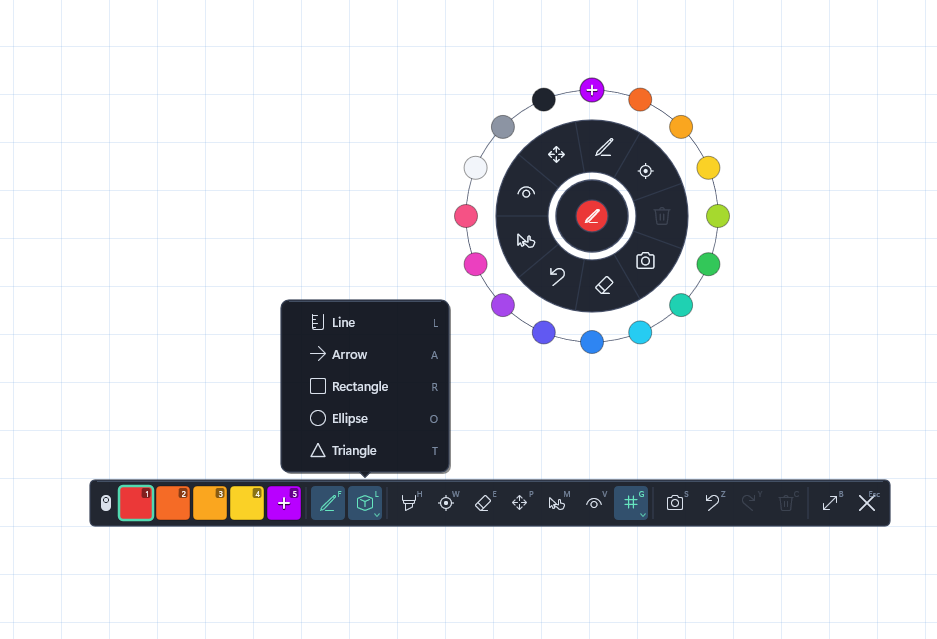
WinDraw Radial Quick Menu & Shapes Flyout
Instant Activation & Dismissal:
Ctrl + Alt + G (customizable) anywhere in Windows to begin annotating immediately.ESC or click the ✕ Exit button to dismiss the overlay.C (Clear All) whenever you want a completely fresh canvas.Hardware-Accelerated Inking & Brushes:
F key): Solid color inking with subpixel accuracy.H key): Translucent alpha-blended highlighting.[ / ] keys dynamically resize brush thickness with a real-time 1:1 circular indicator dot showing active color and zoom level.Shapes & Geometry:
F key)L key)A key) with automatically oriented sharp arrowheadsR key)O key)T key)Shift while drawing to snap lines to 45° increments or constrain rectangles and ellipses to perfect squares and circles.Custom Color & Opacity Studio:
+ slot in the toolbar or press 5 to open the full-fledged Color Studio.Circular Radial Quick Menu:
Collapsible Floating Toolbar & Status Pill:
B key): Collapses the full bar into an ultra-compact status pill showing active ink color and grip handle.Vanishing Neon Laser Pointer (D key):
Interactive Grid System (G key):
Shift + G to cycle grid density (Fine → Medium → Coarse) directly from the keyboard.Region Snipping & Full Screenshots:
S key): Click and drag a selection rectangle to crop and copy/save a specific screen region.Ctrl + S): Captures the full annotated screen to the Windows clipboard (CF_DIBV5 / CF_DIB / CF_BITMAP) and auto-saves to %USERPROFILE%\Pictures\WinDraw\.Pan & Zoom Canvas Navigation:
P key): Click and drag to reposition drawings across large canvases.0 (while in Pan mode) or Ctrl + 0 (any mode) to reset zoom to 100% and pan offset to (0, 0).Pointer / Click-Through Mode (M key):
Ink History & Visibility:
Ctrl + Z) and Redo (Ctrl + Y).C key) with full undo support.V key): Temporarily toggles drawing visibility without clearing strokes.Customizable Cursor Style & Size:
Temporary Whiteboard & Blackboard Mode (K or Alt + B):
Transparent, Whiteboard, Blackboard) and target displays (Active Screen (Follows Cursor), Primary Screen, specific monitor Screen 1, Screen 2, or All Screens).ESC while keeping your ink strokes intact.Ctrl + S) or snips (S key).| Shortcut | Action |
|---|---|
| Ctrl + Alt + G | Activate / Open WinDraw Overlay (Customizable) |
| ESC | Dismiss / Close WinDraw Overlay (Preserves Ink) |
| F | Freehand Pen Tool |
| H | Highlighter Tool |
| D | Vanishing Neon Laser Pointer |
| E | Eraser Tool (or hold Right Mouse Button) |
| L | Straight Line Shape |
| A | Arrow Shape |
| R | Rectangle Shape |
| O | Ellipse / Circle Shape |
| T | Triangle Shape |
| P | Pan Canvas Mode |
| M | Pointer (Click-Through) Mode |
| K / Alt + B | Cycle Canvas Backdrop (Transparent → Whiteboard → Blackboard) |
| G | Toggle Grid Flyout / Cycle Grid Style |
| Shift + G | Cycle Grid Density (Fine → Medium → Coarse) |
| B | Collapse / Expand Toolbar Pill |
| Ctrl + Shift + B | Reset Toolbar Position to Primary Screen Center |
| V | Toggle Ink Visibility (Show/Hide) |
| C | Clear All Drawings |
| Ctrl + Z | Undo last stroke |
| Ctrl + Y | Redo last undone stroke |
| S | Region Snipping Tool (Crop & Copy to Clipboard) |
| Ctrl + S | Take Full Screen Snapshot & Copy to Clipboard |
| [ / ] | Decrease / Increase Brush Size (or Laser Trail) |
| 0 / Ctrl + 0 | Reset Canvas Zoom & Pan (0 in Pan mode, Ctrl + 0 anytime) |
| 1 - 4 | Select Preset Colors (Crimson Red, Tangelo Orange, Amber Gold, Sun Yellow) |
| 5 | Open Custom Color & Opacity Studio |
A simple volume mixer for Windows 11. Control your overall volume and individual apps from one small window.
Click the speaker icon in the system tray to open or close the mixer. If it is hidden, open the tray overflow menu and drag the icon onto the taskbar.
Choose your theme, background transparency, animations, and apps per page in the mod settings. If an app is missing, keep the mixer open and play some audio in it. Apps on other output devices are remembered after playing while the mixer is open, until their audio session ends.
To avoid having two volume icons, install Taskbar tray system icon tweaks and enable Hide volume icon in its settings. This hides the Windows 11 volume icon while keeping Better Volume Mixer's icon visible.